Option 3 might not be an option at all, since I don't have any ready-made utilities and don't have the expertise to examine the binary data in the hard drive's system files. It's possible that AI tools could be used, but I'd rather take a bucket to a scrap yard and collect some damaged hard drives than experiment with yours.
And the virtual mode option isn't very convenient because you have to constantly juggle these buttons, and you simply need experience with this feature to use it correctly.
---
Judging by the SMART data, the drive isn't in such bad shape yet, which means it's time to click the other buttons.
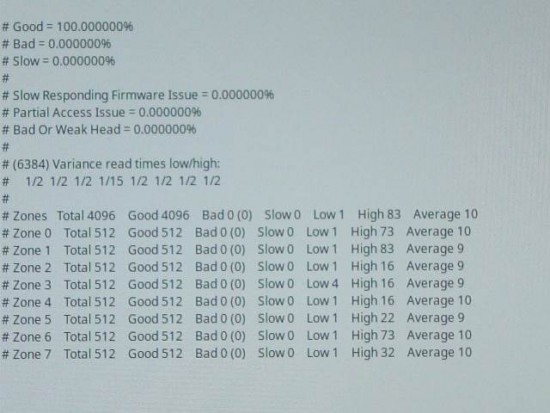
These buttons are called "Analyze" and "Extended Analyze". The first one is needed for a quick assessment of the hard drive's condition, and the second one is for a more thorough check of the drive, which is supposedly fine. On a healthy hard drive, these tests take less than 2 and less than 5 minutes, respectively. But on yours, they'll likely take a little longer. You need the first button. This function is relatively safe because it also uses timers, and during testing, the program won't meticulously attempt to read anything, thereby destroying a severely damaged hard drive (but all data requested from the hard drive during the test will also be written to the image! Not a single byte will be wasted). After the test, a results window will appear, as shown in the image below.
Attachment:
 analysis.jpg [ 34.91 KiB | Viewed 15543 times ]
In your case, the result will likely look something like good 0% bad 0% slow 100%, or something like that. Below, the program will try to guess what's wrong with the hard drive if it's failing. The problem is partial access (in other words, scratches on the surface of the plates), damaged heads, or something that in our case you don’t even have to guess. For these WD HDDs, even 2 or 9 sectors in the pending relocation list are enough for the hard drive to start freezing.
A quick solution to this annoying problem looks like this:
There's something called the Super Tool on the desktop. It's an interactive command line script, or rather an AI chatbot, but without any intelligence whatsoever.

The script is controlled using the keyboard.
The path to what you're looking for looks like this: ATA Passthrough - select your hard drive - VSC (Vendor Specific Commands).
In this treasure chest, we need the patch mod 02 option and possibly patch mod 32 (if patching just module 02 didn't help).
Before patching anything, you can select other options in this same menu to see what they do, for example, reading all modules and reading the ROM located on the hard drive control board. When reading the ROM, the script will ask you to name the dump file; enter "rom.bin" there. This is a bit of an unnecessary step, but when tinkering with the hard drive firmware, and other things for that matter, it's always best to have a complete backup just in case something goes horribly wrong. The script saves the files to the "Home" folder on your desktop. A bunch of small files will appear there; copy them to the new hard drive just in case.
You can play with this script and its capabilities without installing any hard drives in your laptop. The script explains what its functions do and warns you if you're about to do something dangerous or potentially harmful.
Returning to the hard drive slow response problem, the patch application process is described in the same menu: the first option reads the system file and fixes it, the second option writes the fixed file back to the hard drive.
While writing a file, the hard drive may make a VERY SCARY sound of a sudden stop and a very rough spin-up, which you will never hear during normal operation. You haven't broken anything; this is normal. To apply the changes, the firmware receives a command from the computer to immediately reboot, and during this time, the spinning disks and the heads hovering above them are left uncontrolled. A microchip that moves the hard drive's moving parts, bringing it to an emergency stop, takes care of them. After a split second, the firmware will take control again and it will want to start the hard drive, which is where these sounds come from.
To be extra sure the patch has been applied, you can wait a minute or more until the drive's inactivity timer expires, its motor stops, and the hard drive stops vibrating. Then simply remove it from the laptop and reinsert it, while the laptop is running and the system is booted. Nothing bad will happen. Or you can turn off the laptop and turn it back on if the previous method seems barbaric.
After applying the patch, return to the OpenSuperClone window and click the "Analyze" button again. If the process goes much faster and the program reports that the drive is 100% healthy or close to it in the analysis results window, you can additionally click the Extended Analysis button. If the results are still good, you can return to the very beginning and continue cloning the hard drive. The easiest way is to leave the computer on overnight and let it do its job, but usually when recovering data, the computer is monitored, watching how it copies, and if any freezes begin, or clicking or scratching sounds are heard from the hard drive, then the process is immediately stopped to prevent damage.
---
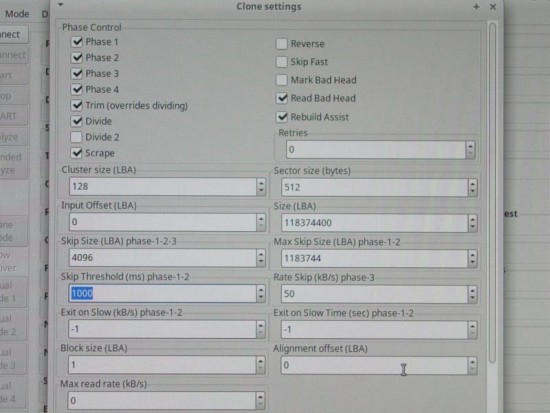
If tinkering with the firmware seems too risky, there's another option, already suggested in the error message: adjusting the settings. Judging by the photos, the drive responds to requests after about 5 seconds. You can set the timeout to 6 or 8 seconds, or even longer, and continue copying. By default, the timeout is set to 1 second (1000 ms), after which the program determines that data is being read slowly from that section and attempts to bypass it by skipping a few megabytes. If, after several jumps, data is still reading slowly, the program increases the skip step, and continues this process until it finds a well-readable section, or increases the skip step to an extremely high value and resets it, returning the error you saw.
Attachment:
 settings.jpg [ 59.63 KiB | Viewed 15543 times ]
The slow response problem has a specific behavior pattern: for the first few hundred or thousand requests after startup or after being idle, the hard drive responds with a significant delay. But if the requests continue, the hard drive exits this slow mode and, after a while, begins transferring data at full speed, sometimes freezing for a split second. This works for both continuous data access operations and random access operations. The main thing is that the computer doesn't stop the flow of requests; then the hard drive doesn't have time to think about other things. You've already noticed this when the hard drive freezes and then starts working for a while.
But judging by the fact that you've already tried running the copy process before, and it took a very long time, copying practically nothing, this most likely won't help. Still, you can try again. Again, this method carries the risk of damaging the hard drive; problematic hard drives tend to be powered on as little as possible and copy data from it as quickly as possible before it fails completely.



 FAQ
FAQ Search
 Login
Login Register
 HDDGURU FILES